Email Setup on Android Phone: Employee
These steps will show how to setup your EKU employee e-mail account on an Android device. There are a wide variety of Android devices made by different manufacturers and running different versions and modifications of the Android software. Some of the screens may differ slightly from the instructions below, depending on the version of the software and the manufacturer of the device.
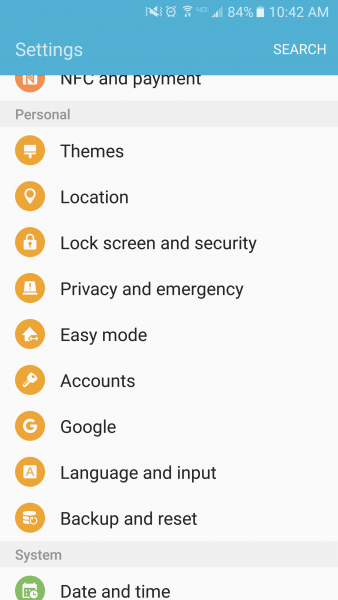
- Go into settings on device and select Accounts (Should be located under the Personal Section)
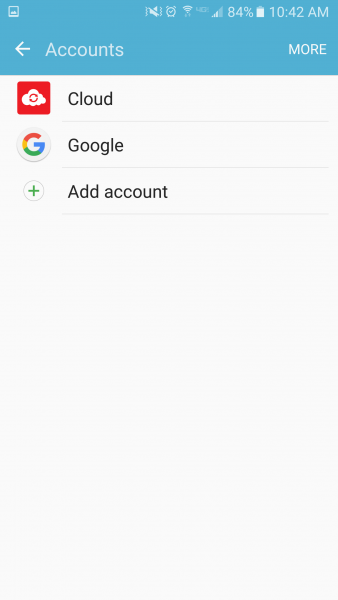
- Tap on Add Account
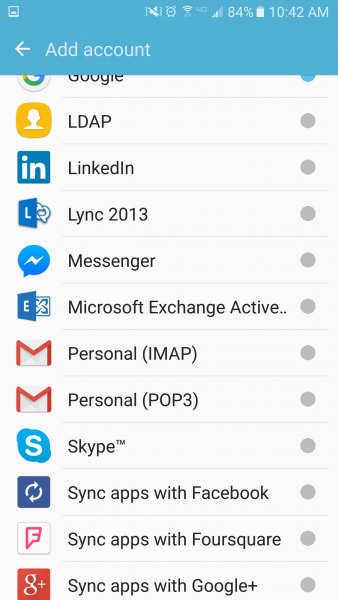
- Next you will see a list of different email providers. You will need to select Microsoft Exchange Active Sync
- Server settings page information:
- For Domain\Username type in “facultystaff\username” (username is last name, first initial(s)
- For Server type owa.eku.edu
- Check Accept all SSL certificates
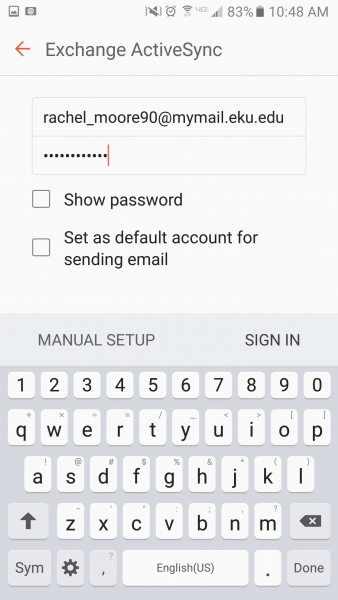
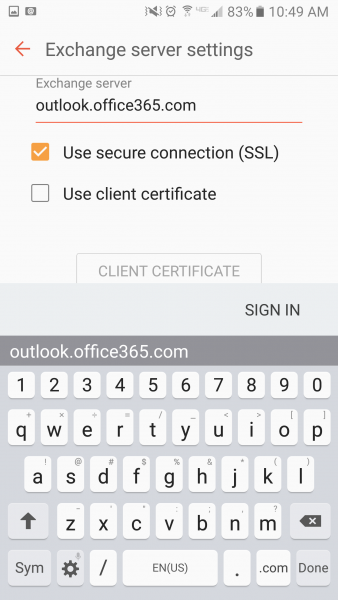
- Press Sign in
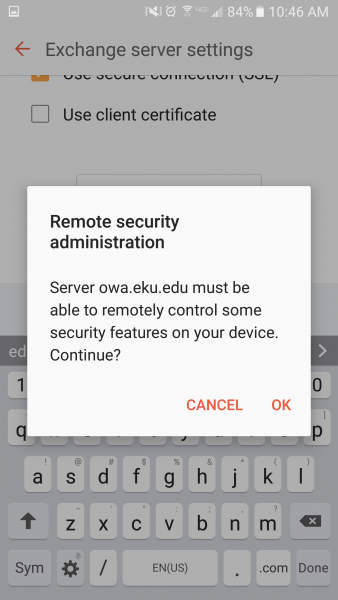
- A screen like this will pop up. Press OK to continue.
- After a few seconds the device should connect to the server and display the following screen.
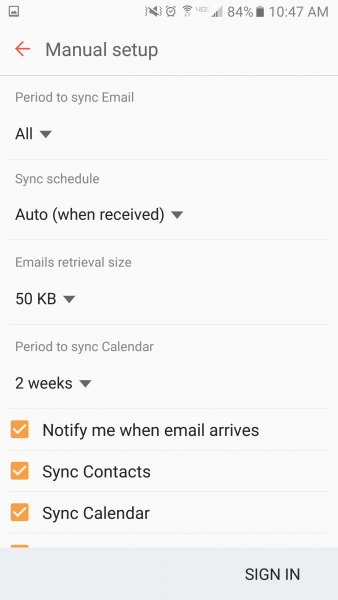
Adjust your settings and select Sign In
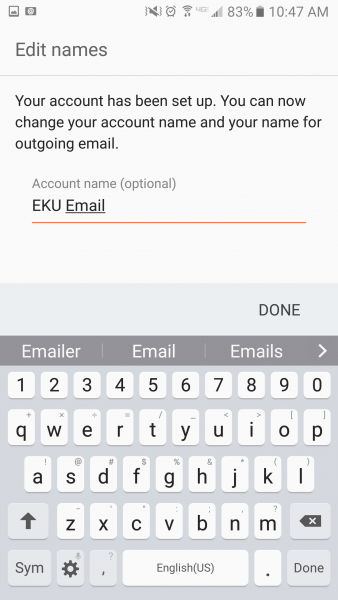
- Type in an account description and your name, and tap Done
Contact Information
IT Service Desk
622-3000
